

Connect Claude to your Dutopilot projects and you can check status, file tickets and act on them without leaving your chat. It runs over MCP, an open standard for connecting assistants to tools, and takes about two minutes.
Connect in the Claude app
These steps work on the Free, Pro and Max plans.
- In Claude, open Plugins in the left sidebar.
- Click Add, then Add custom connector.
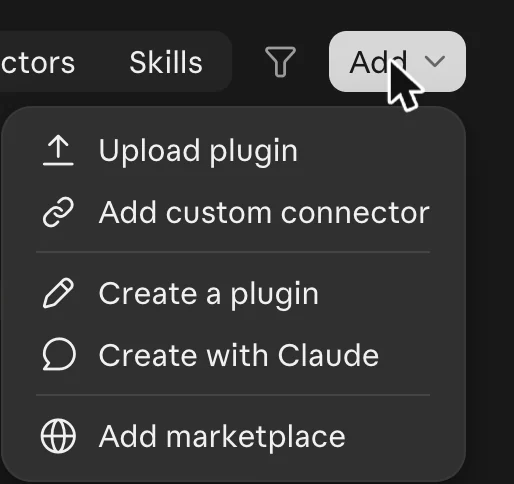
The Add menu on the Plugins page. - Name it Dutopilot, paste
https://app.dutopilot.com/mcpas the MCP server URL, and click Continue.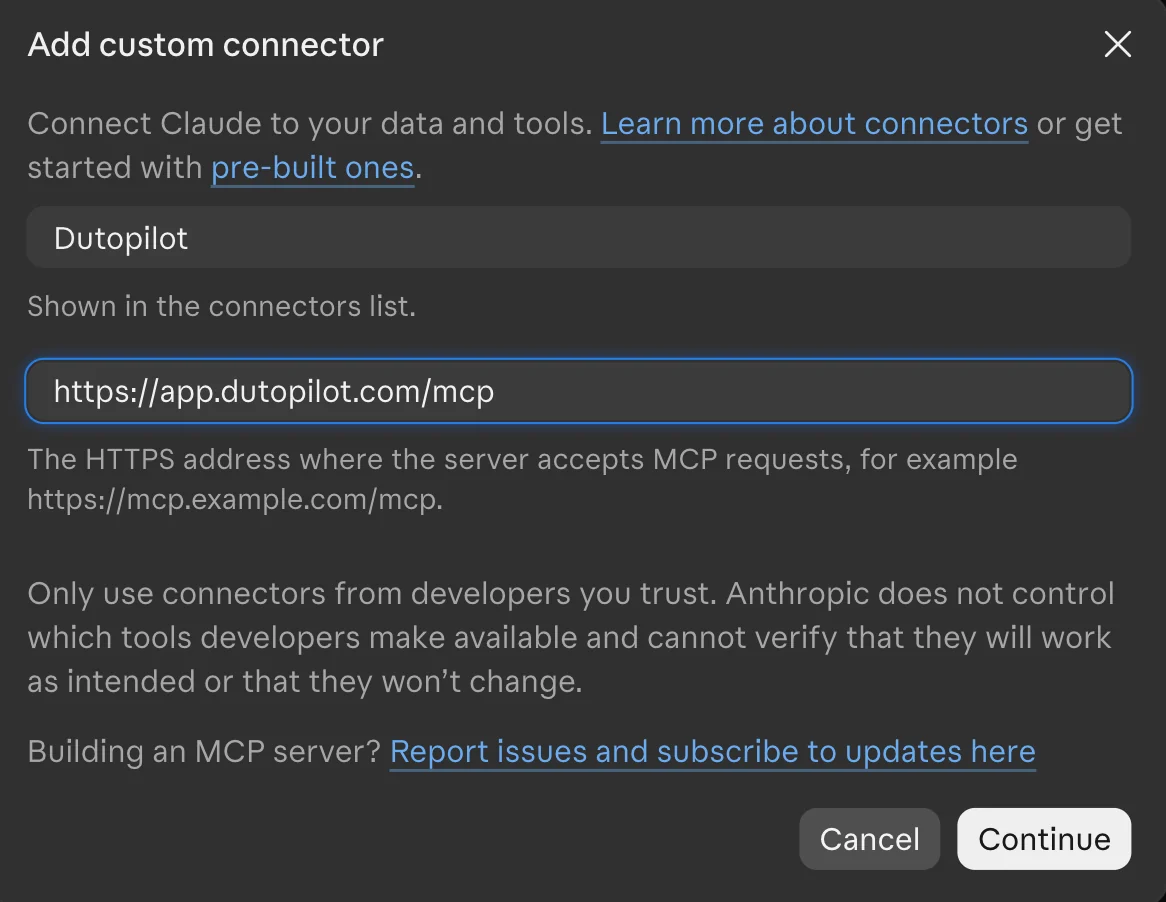
The dialog, filled in with Dutopilot and the URL. - Claude opens the Dutopilot sign-in page. Click Send me a code, enter the 6-digit code from your email, and allow access.
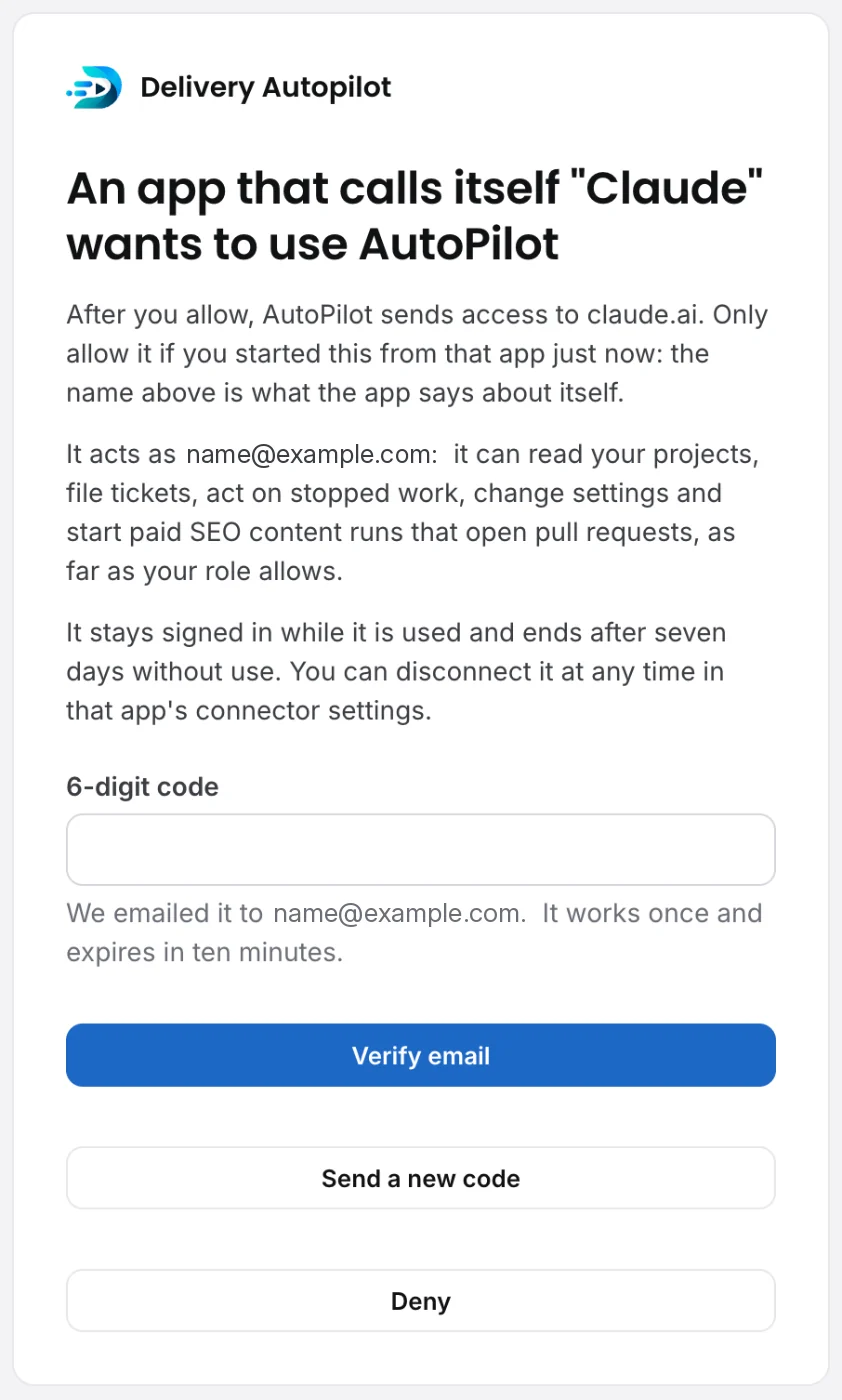
The Dutopilot page that asks you to allow Claude. - Back in Claude, Dutopilot shows as Connected on its plugin page.
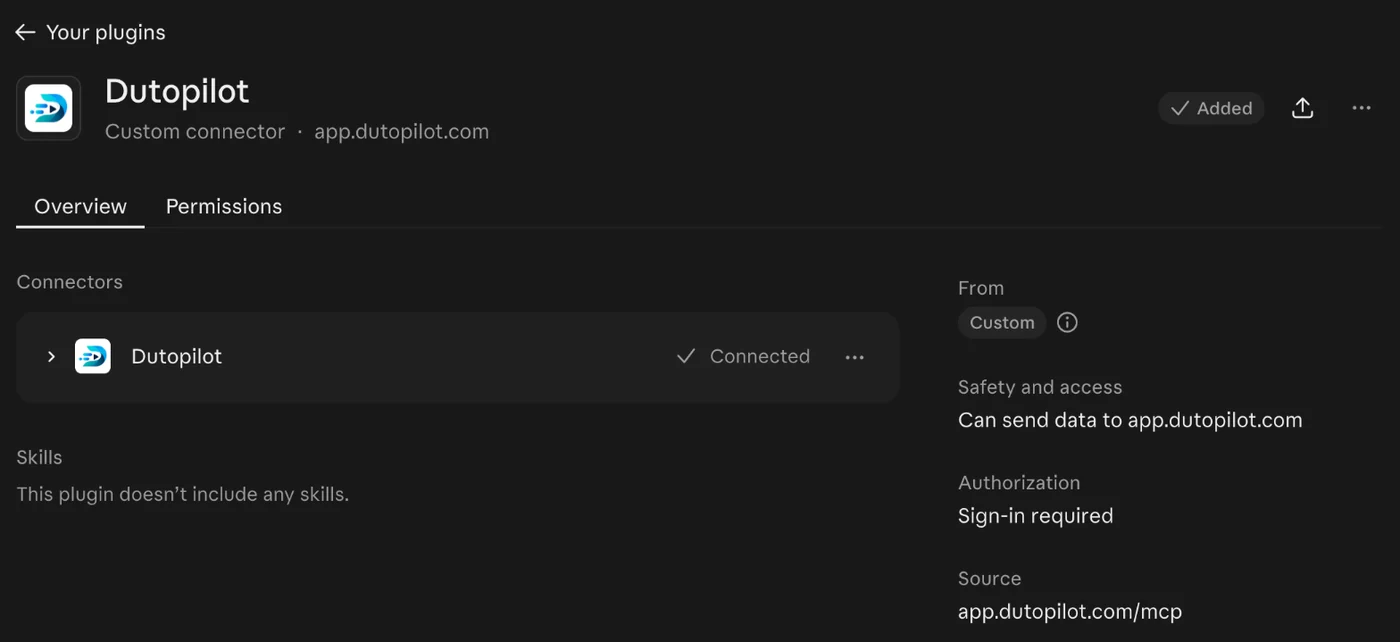
Dutopilot shows as Connected.
Free plans allow one custom connector.
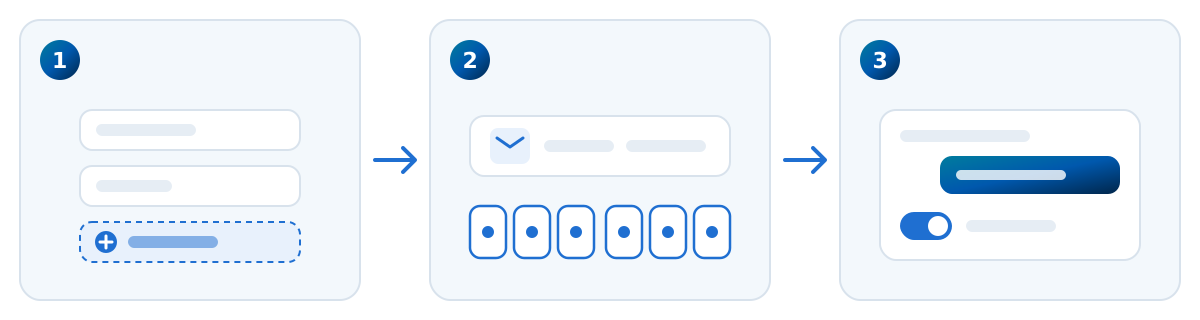
On a Team or Enterprise plan
An Owner adds the connector once for everyone. Open Organization settings, then Connectors, click Add, then Custom, then Web, and use the same name and URL.
Each member then opens Plugins in Claude, finds Dutopilot, connects it, and signs in with their own email code.
Turn it on in a chat
Click the + in the message box, choose Plugins, and switch Dutopilot on. Tool access in the same menu lets you choose which tools Claude may use.
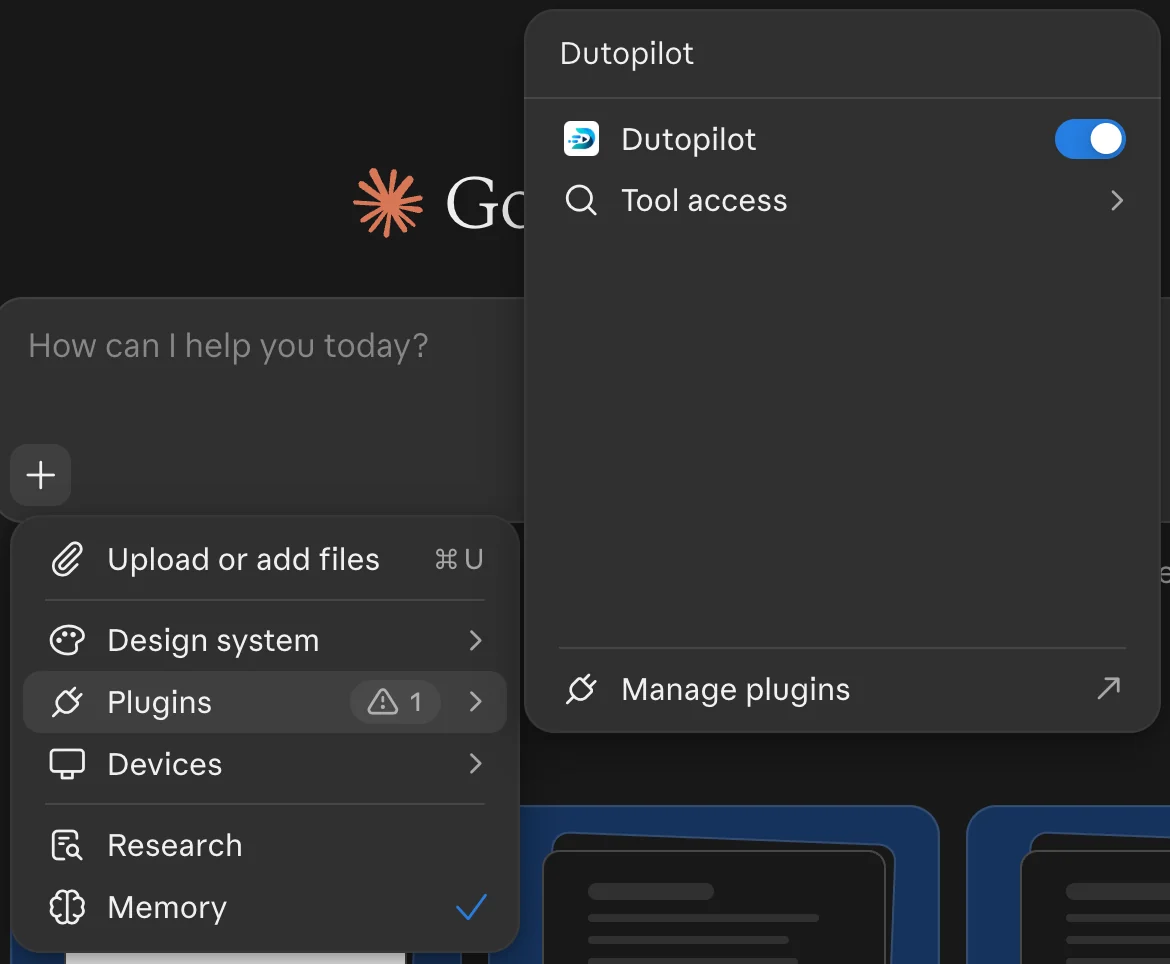
Desktop and mobile
Once you add the connector on the web, it also works in the Claude desktop and mobile apps. There is nothing extra to set up.
Connect in Claude Code
In Claude Code, one command adds the connector:
claude mcp add --transport http dutopilot https://app.dutopilot.com/mcpThen run /mcp in Claude Code, choose dutopilot and sign in with the emailed code.
The tools, in plain words
The connector has seven tools, in two groups. The two admin-only tools are marked.
Only read
These look at your work and never change it.
statusRead your projects, a project board or a single ticket.get_settingsRead project settings.branch_testsRead which tests fail on the default branch.
Change things
These change your project, so they follow your role.
file_ticketCreate a ticket on your project board.actTake an action a ticket offers, like approve the plan, stop or resume.update_settingsAdmins onlyChange settings and AI accounts, and check that an AI account works.seo_content_runAdmins onlyQueue an SEO content job.
Claude groups the tools the same way, as read-only and write/delete. On the connector's Permissions tab you choose, per tool, whether Claude asks you first.
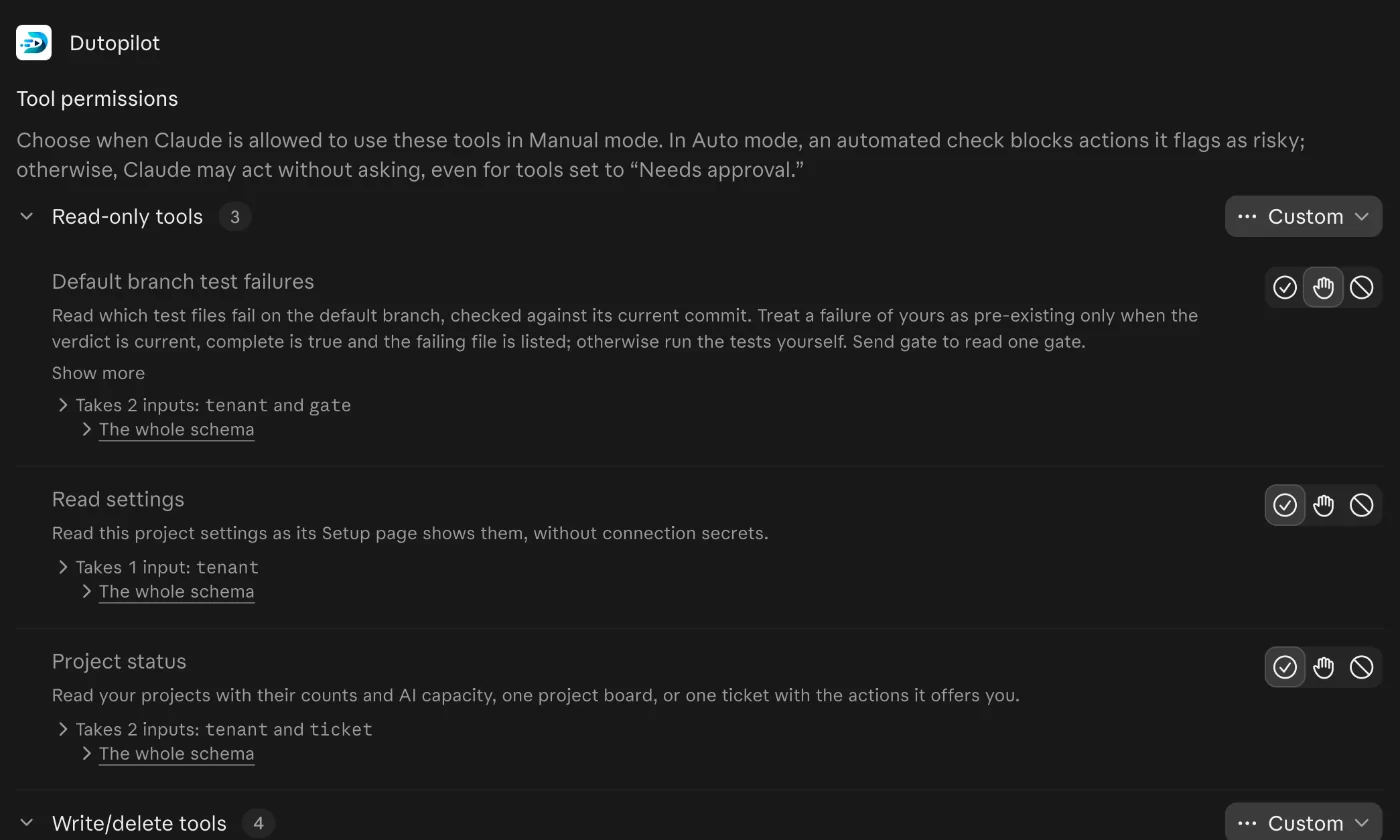
Everyone on a Dutopilot project can connect and use the read tools. Filing a ticket needs at least the Member role, the actions a ticket offers depend on your role, and two tools are admin-only; they are marked above.
Your chat history stays yours
The server cannot read your chat history. It receives only what the assistant puts into a tool call, such as the text of a ticket you ask it to file. The rest of your conversation stays between you and the assistant. The privacy page has the details.
Disconnecting
You can disconnect at any time from the connector settings of your assistant. A connection that sits idle expires after 7 days.
Questions and help
Anything unclear, or something that does not work, write to [email protected].